Platform
 W&B Models
 W&B Weave
 W&B Inference
 W&B Training
 Release Notes
- You want to observe and analyze production traffic without modifying your code
- You need to surface trends and issues over time
- You want configurable sampling (for example, score 10% of calls to reduce costs)
- You’re evaluating both text and audio outputs
How to create a monitor in Weave
To create a monitor in Weave:- Open the W&B UI and then open your Weave project.
- From the Weave side-nav, select Monitors and then select the + New Monitor button. This opens the Create new monitor menu.
- In the Create new monitor menu, configure the following fields:
- Name: Must start with a letter or number. Can contain letters, numbers, hyphens, and underscores.
- Description (optional): Explain what the monitor does.
- Active monitor toggle: Turn the monitor on or off.
- Calls to monitor:
- Operations: Choose one or more
@weave.ops to monitor. You must log at least one trace that uses the op before it appears in the list of available ops. - Filter (optional): Narrow down which calls are eligible (for example, by
max_tokensortop_p). - Sampling rate: The percentage of calls to score (0% to 100%).
- Operations: Choose one or more
- LLM-as-a-judge configuration:
- Scorer name: Must start with a letter or number. Can contain letters, numbers, hyphens, and underscores.
- Judge model: Select the model to score your ops. The menu contains any commercial LLM models you have configured in your W&B account and W&B Inference models. Audio-enabled models have an Audio Input label beside their names. For the selected model, configure the following settings:
- Configuration name: A name for this model configuration.
- System prompt: Defines the judging model’s role and persona, for example, “You are an impartial AI judge.”
- Response format: The format the judge should output its response in, such as a
json_objector plaintext. - Scoring prompt: The evaluation task used to score your ops. You can reference variables from your ops in your scoring prompts. For example, “Evaluate whether
{output}is accurate based on{ground_truth}.” See Prompt variables.
feedback field.
Example: Create a truthfulness monitor
The following example creates a monitor that evaluates the truthfulness of generated statements.- Define a function that generates statements. Some are truthful, others are not:
- Run the function at least once to log a trace in your project. This allows you to set up a monitor in the W&B UI:
- Open your Weave project in the W&B UI and select Monitors from the side-nav. Then select New Monitor.
-
In the Create new monitor menu, configure the fields using the following values:
- Name:
truthfulness-monitor - Description:
Evaluates the truthfulness of generated statements. - Active monitor: Toggle on.
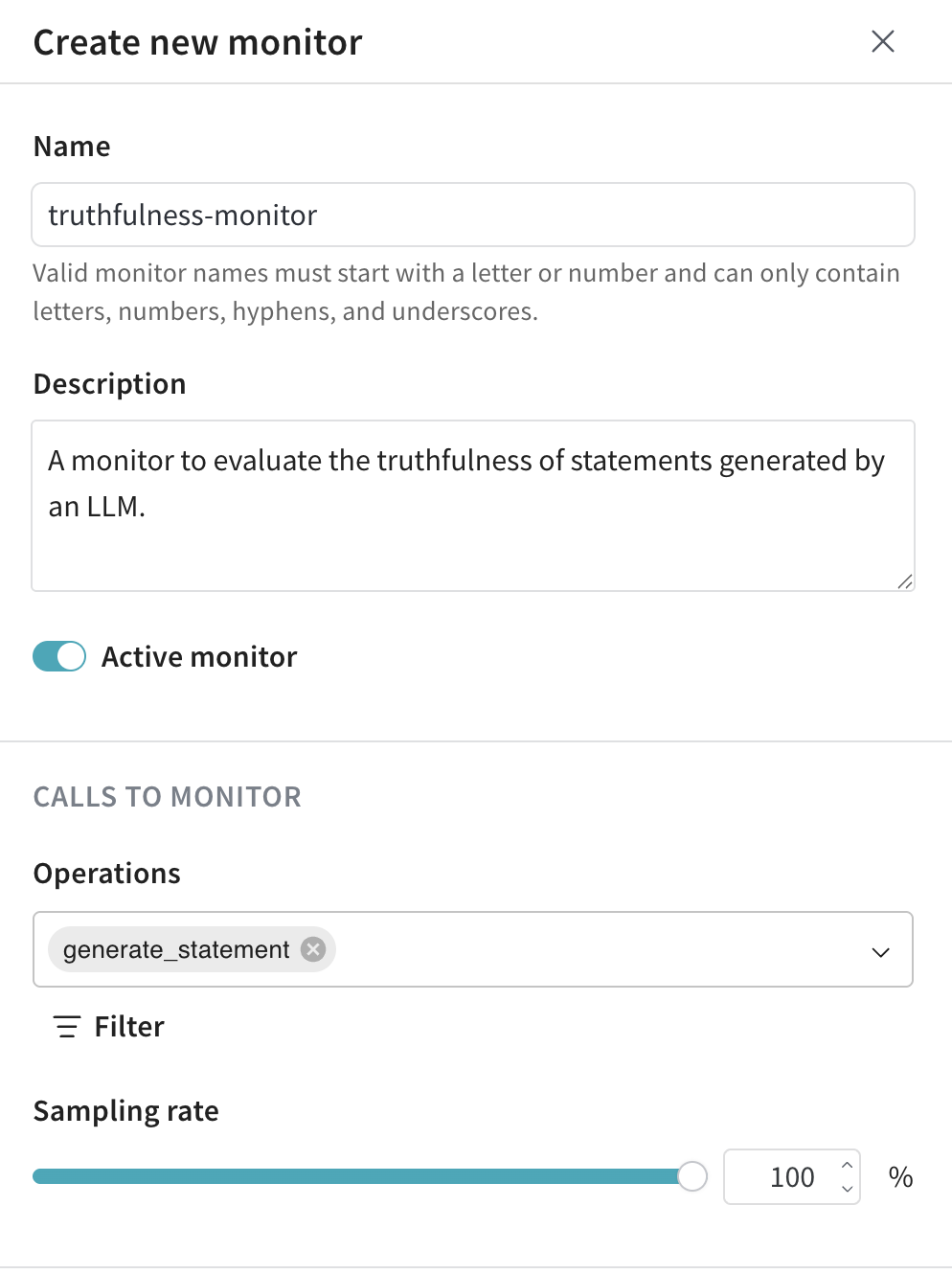
- Operations: Select
generate_statement. - Sampling rate: Set to
100%to score every call.
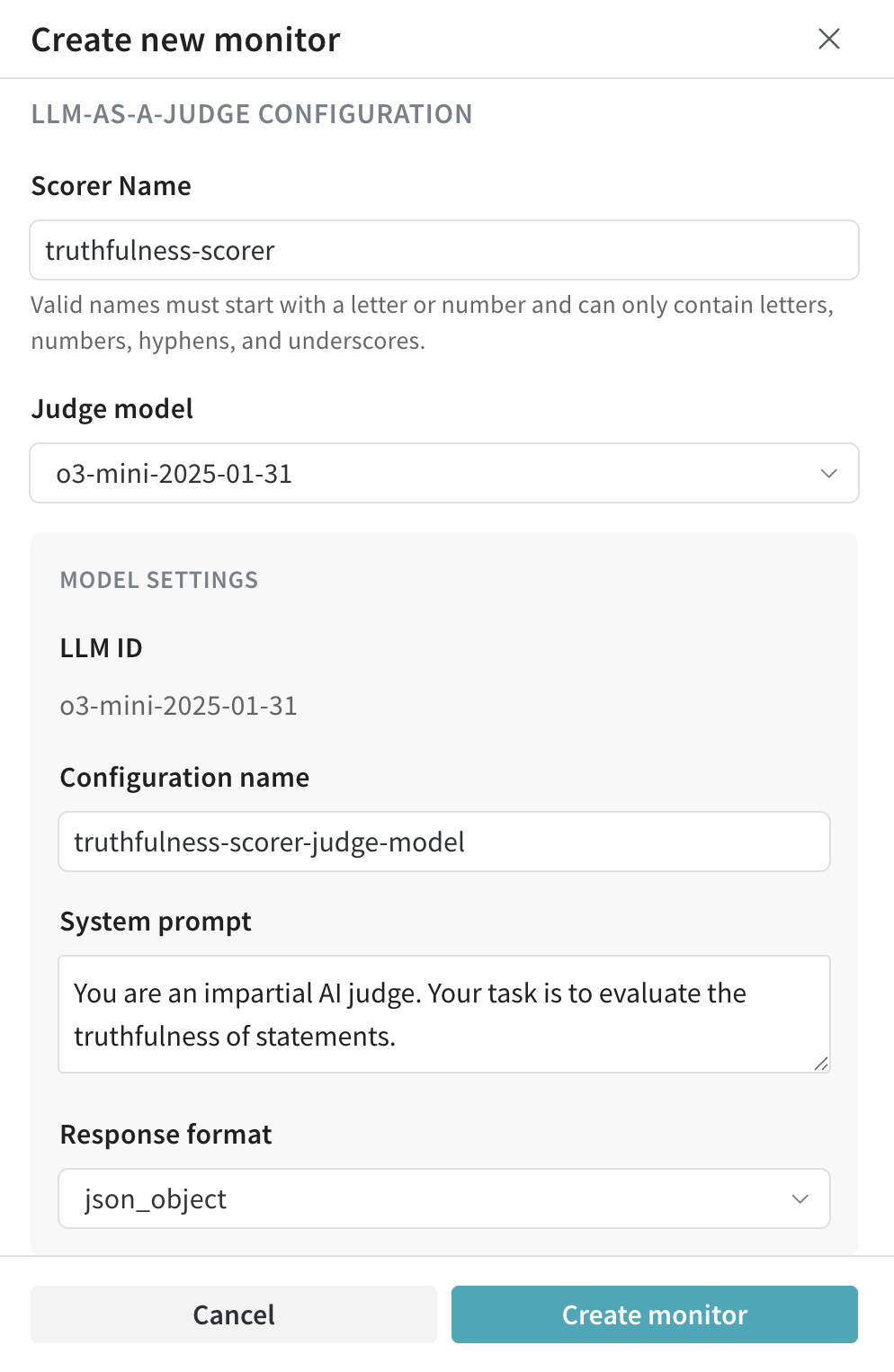
- Scorer name:
truthfulness-scorer - Judge model:
o3-mini-2025-01-31 - System prompt:
You are an impartial AI judge. Your task is to evaluate the truthfulness of statements. - Response format:
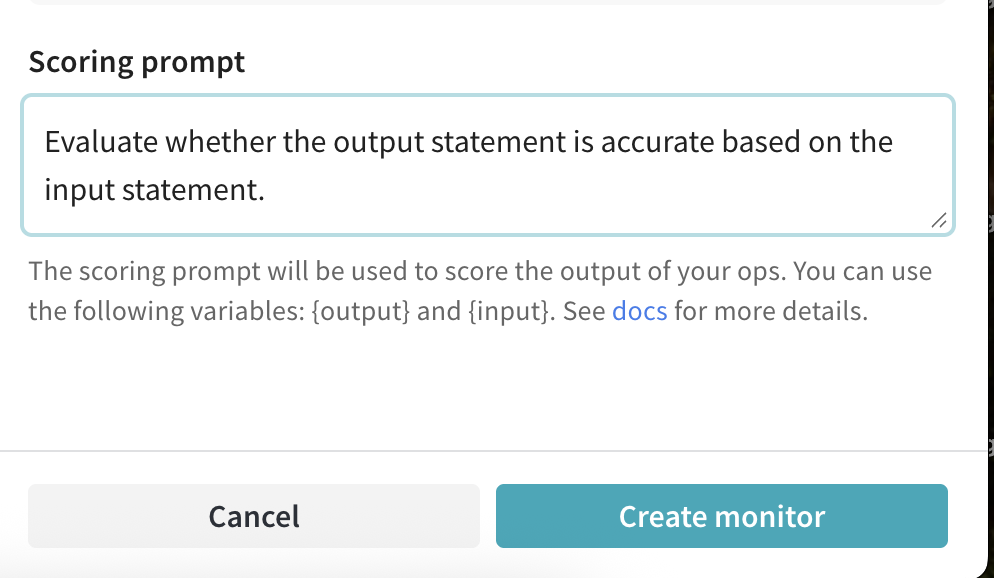
json_object - Scoring prompt:
- Name:
- Click Create Monitor. This adds the monitor to your Weave project.
- Back in your Python script, invoke your function using statements of varying degrees of truthfulness to test the scoring function:
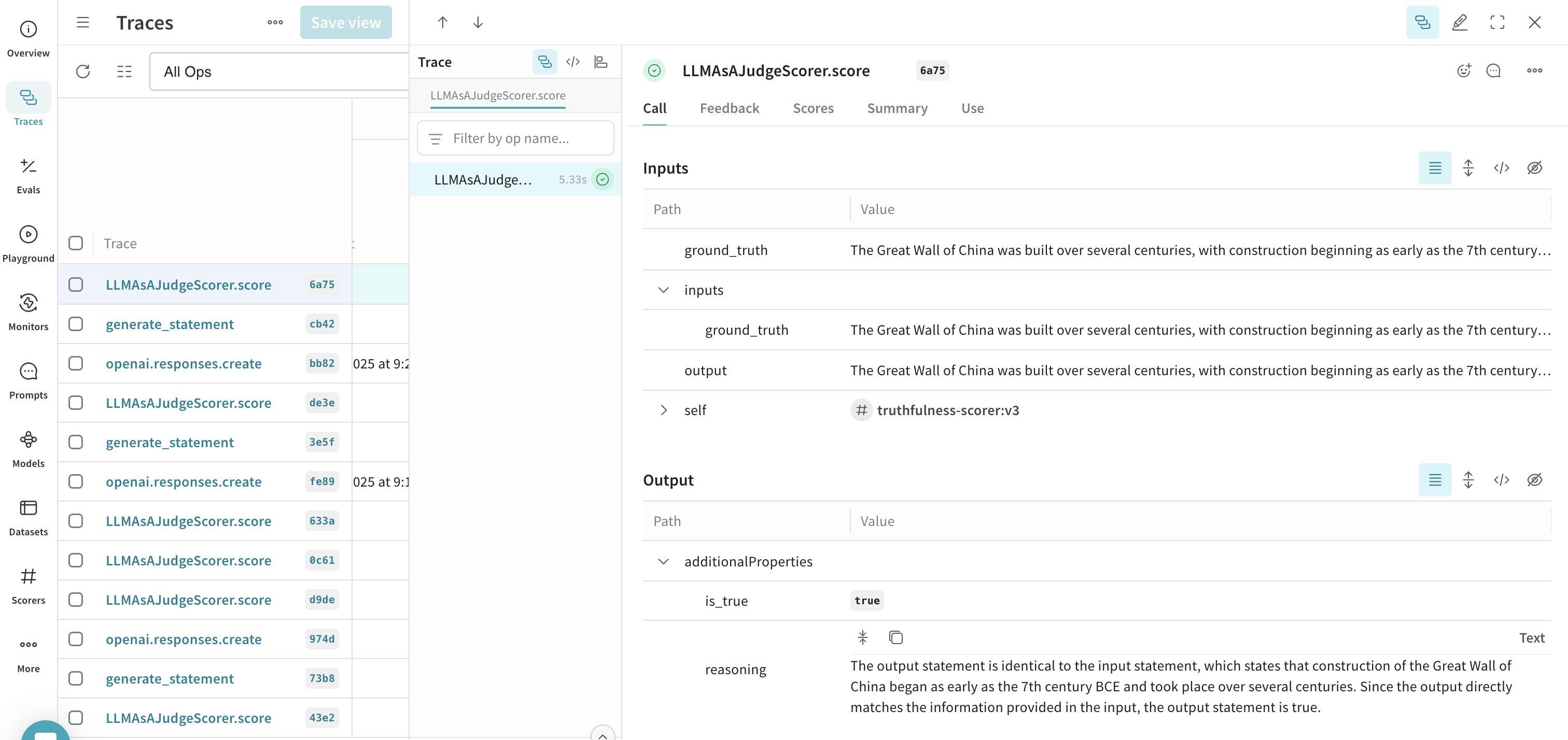
- After running the script using several different statements, open the W&B UI and navigate to the Traces tab. Select any LLMAsAJudgeScorer.score trace to see the results.